

Deployment Steps
Set Up a Relay Server
Ensure a relay server is running and accessible before you deploy any gateways. You have two options:
- Managed relay (Infisical Cloud, US/EU only): If you are using Infisical Cloud in the US or EU regions, you can use the provided managed relay.
- Self-hosted relay: For all other cases, you must deploy your own relay server. See the Relay Deployment Guide.
Create the Gateway in the UI
- Navigate to Organization Settings > Networking > Gateways.
- Click Create Gateway.
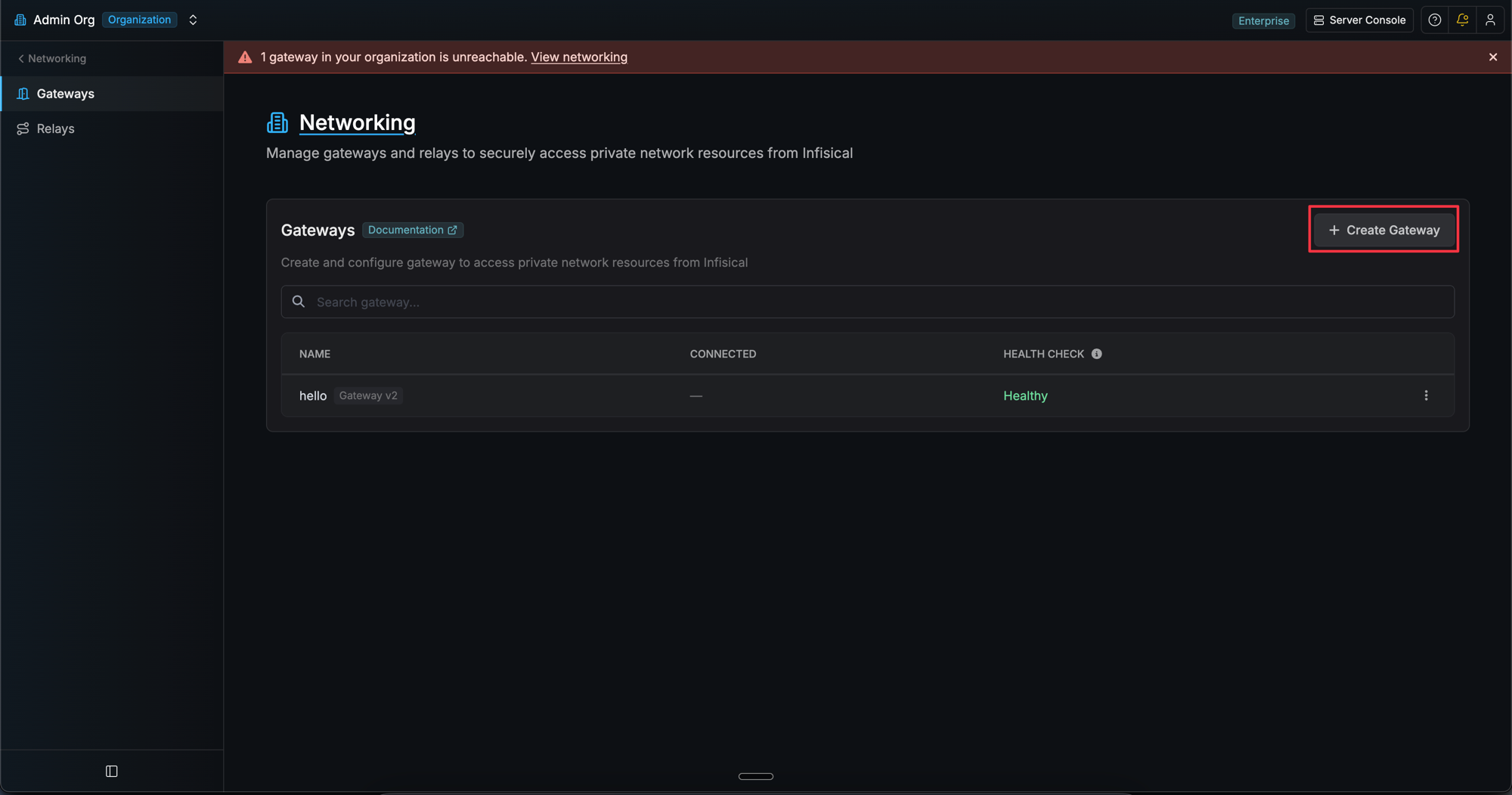
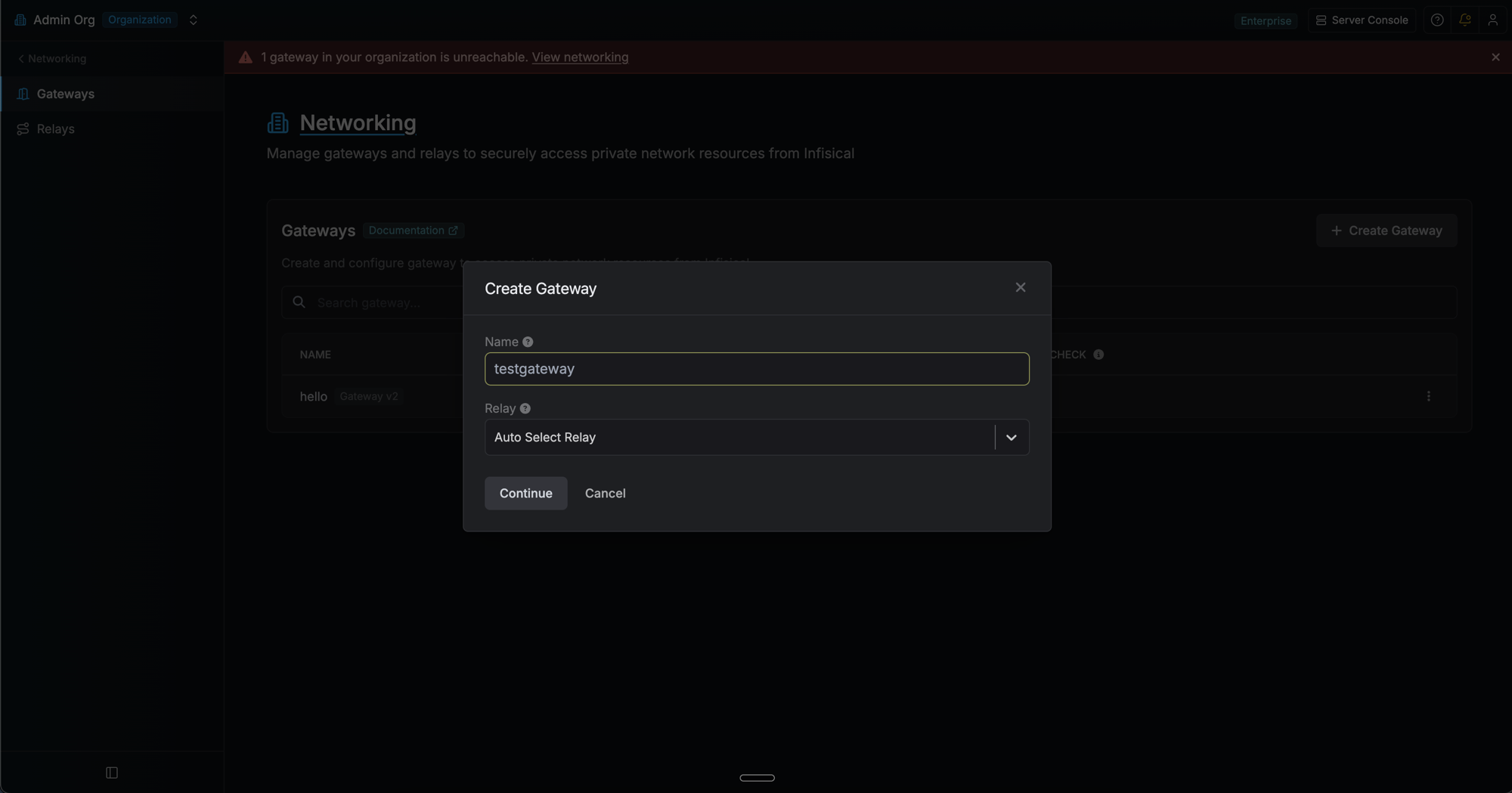
- Enter a name for your gateway and select a relay (or use “Auto Select Relay”).
- Choose your deployment method (CLI or systemd).
- Copy the generated CLI command. The command includes a one-time enrollment token that expires in 1 hour.
Install the Infisical CLI
Make sure the Infisical CLI is installed on the target machine. See the CLI Installation Guide for instructions.
Configure Network & Firewall
Ensure your network and firewall settings allow the gateway to connect to all required services. All connections are outbound only; no inbound ports need to be opened.
For managed relays, allow outbound traffic to the provided relay server IP/hostname. For self-hosted relays, allow outbound traffic to your own relay server address.If you are in a corporate environment with strict egress filtering, ensure outbound TCP 2222 to relay servers and outbound HTTPS 443 to Infisical API endpoints are allowed.
| Protocol | Destination | Port | Purpose |
|---|---|---|---|
| TCP | Relay Server IP/Hostname | 2222 | SSH reverse tunnel establishment |
| TCP | Infisical instance host (US/EU, other) | 443 | API communication and certificate requests |
Run the CLI Command
Run the command you copied from the UI on the target machine. This single command enrolls the gateway and starts it immediately.
- Linux Server (Production)
- Development & Testing
For production deployments on Linux, install as a systemd service:
The enrollment token can only be used once and expires after 1 hour. If it expires, use the Re-enroll option in the gateway’s context menu to generate a new one.
You can safely re-run the same command to restart the gateway. It will detect the token has already been used and skip enrollment automatically.
Verify Your Gateway Deployment
After deployment, verify your gateway is working:
- Check logs for “Gateway started successfully” message.
- Verify registration in the Infisical UI. Navigate to Networking > Gateways and confirm the gateway shows a “Healthy” status.
- Test connectivity by creating a resource that uses the gateway to access a private service.
Re-enrollment
To move a gateway to a different machine or regenerate its credentials:- Click the context menu (three dots) next to the gateway and select Re-enroll.
- Copy the new CLI command and run it on the new machine.
- The existing gateway continues running until the new machine enrolls. Once the new machine connects, the old machine’s credentials are automatically revoked. This enables zero-downtime machine migrations.
Frequently Asked Questions
Do I need to open any inbound ports on my firewall?
Do I need to open any inbound ports on my firewall?
No inbound ports need to be opened for gateways. The gateway only makes outbound connections:
- Outbound SSH to relay servers on port 2222
- Outbound HTTPS to Infisical API endpoints on port 443
- SSH reverse tunnels handle all communication - no return traffic configuration needed
How do I test network connectivity from the gateway?
How do I test network connectivity from the gateway?
Test relay connectivity and outbound API access from the gateway:
- Test SSH port to relay:
- Test outbound API access (replace with your Infisical domain if different):
How do I troubleshoot relay connectivity issues?
How do I troubleshoot relay connectivity issues?
If the gateway cannot connect to the relay:
- Verify the relay server is running and accessible
- Check firewall rules allow outbound connections on port 2222
- Confirm the relay name matches exactly
- Test SSH port to relay:
How do I troubleshoot authentication failures?
How do I troubleshoot authentication failures?
Ensure the enrollment token has not expired or already been used. If the gateway was re-enrolled, the old machine’s credentials are no longer valid. You can generate a new enrollment token using the Re-enroll option in the gateway’s context menu.
Where can I find gateway logs?
Where can I find gateway logs?
Check gateway logs for detailed error information:
- systemd service:
- Local installation: Logs appear in the terminal where you started the gateway
What happens if my enrollment token expires?
What happens if my enrollment token expires?
Enrollment tokens expire after 1 hour. If the token expires before you run the CLI command, click the context menu (three dots) next to the gateway and select Re-enroll to generate a new token.
Where are gateway credentials stored?
Where are gateway credentials stored?
Each gateway’s access token and domain are saved to a config file scoped by gateway name:
- Running as root/sudo:
/etc/infisical/gateways/<name>.conf - Running as a regular user:
~/.infisical/gateways/<name>.conf
/etc/infisical/gateway.conf. All config files are created with restricted permissions (0600) so only the owner can read them.Can I run multiple gateways on the same machine?
Can I run multiple gateways on the same machine?
Yes. Each gateway stores its credentials in a separate config file scoped by name (e.g.,
~/.infisical/gateways/my-gateway.conf). You can enroll and start multiple gateways in separate terminal sessions using different names.What happens if there is a network interruption?
What happens if there is a network interruption?
The gateway is designed to handle network interruptions gracefully:
- Automatic reconnection: The gateway will automatically attempt to reconnect to relay servers if the SSH connection is lost
- Connection retry logic: Built-in retry mechanisms handle temporary network outages without manual intervention
- Persistent SSH tunnels: SSH connections are automatically re-established when connectivity is restored
- Certificate rotation: The gateway handles certificate renewal automatically during reconnection
- Graceful degradation: The gateway logs connection issues and continues attempting to restore connectivity